
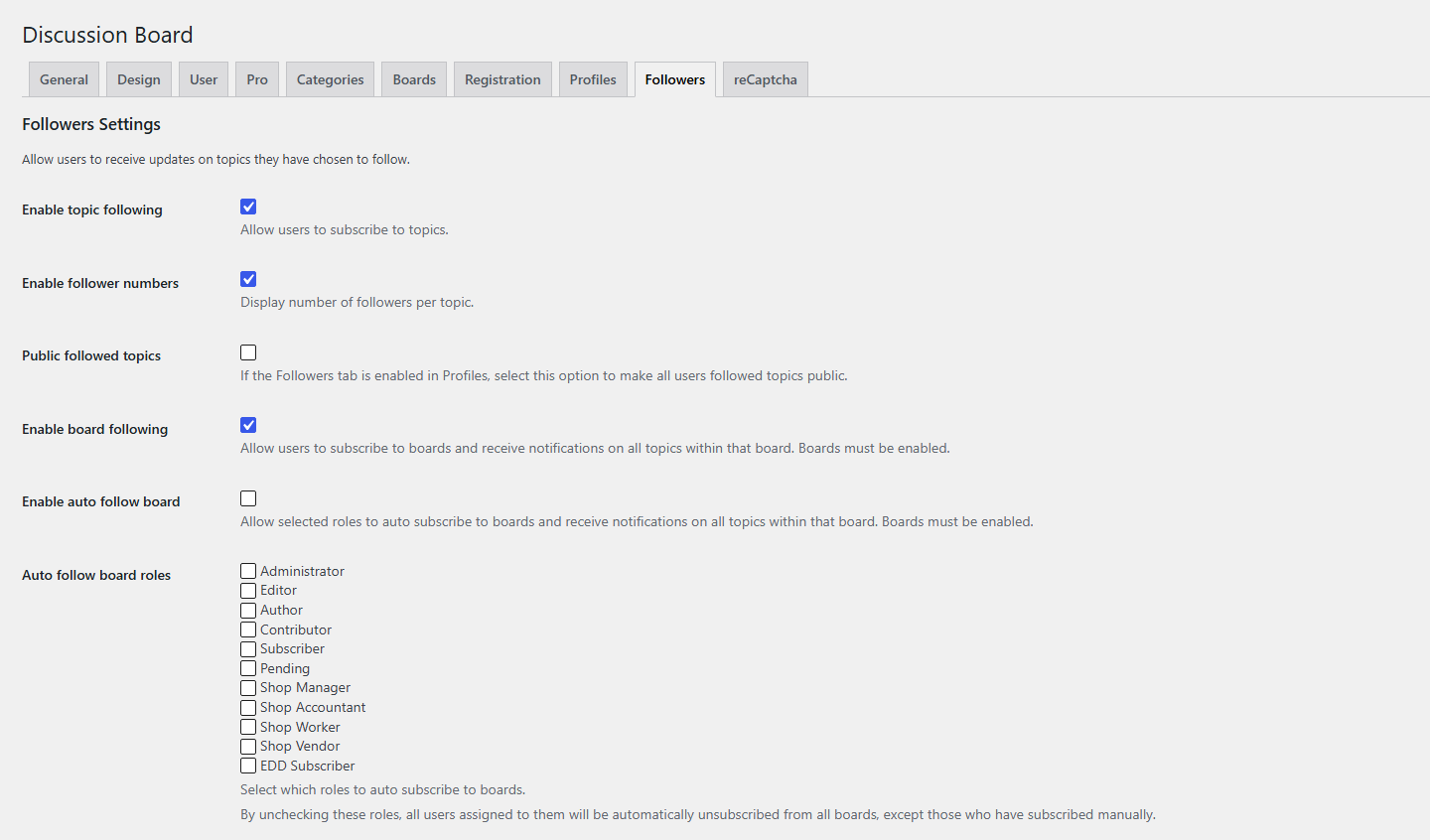
Enable topic following
You can allow users to subscribe to selected topics. When a new comment is posted on the topic, subscribers will receive an email.
Enable this feature by going to Settings > Discussion Board > Followers and checking the ‘Enable topic following’ option. With topic following enabled, users will see a checkbox on each topic page allowing them to subscribe or unsubscribe to that topic.
You can change the wording next to the subscribe checkbox by editing the ‘Follow message’ field.
Enable follower numbers
You can opt to display the number of users following a topic by selecting the ‘Enable follower numbers’ checkbox. You can amend the wording that appears after the number of followers by editing the ‘After followers text’ field.
With topic following enabled, you can choose to display which topics users are following on their profile page. In the Discussion Board settings, click on the Profile tab and select the ‘Following’ checkbox in the ‘Profiles tab’ field. When a user views their profile page they will see a list of the topics they are following.
Public followed topics
You can also choose to make a user’s followed topics visible to everyone by selecting the ‘Public followed topics’ checkbox on the Followers tab. Anyone viewing a user’s profile page will see which topics they are following.
Enable board following
Available in the PRO version. Allows users to subscribe to a board and receive notifications for activity on all topics within that board. Boards must be enabled for this feature to work.
Enable auto-follow board
Available in the PRO version. Automatically subscribes users with selected roles to boards, allowing them to receive notifications for activity on all topics within those boards. Boards must be enabled for this feature to work.
Auto follow board roles
Uncheck a role to automatically unsubscribe users assigned to that role from all boards. Users who have manually subscribed to a board will remain subscribed.


